

Introduction
If you’re looking for ways to recover deleted photos on Android, you’re not alone. Accidentally deleting important photos from your Android phone can be frustrating. Whether it’s family memories, work documents, travel pictures, or screenshots, losing photos doesn’t always mean they’re gone forever.
Fortunately, Android devices offer several ways to recover deleted photos. From Google Photos Trash and Gallery Recycle Bin to cloud backups and recovery apps, there are multiple methods you can try. In this complete guide, you’ll learn the most effective ways to recover deleted photos on Android and prevent future data loss.
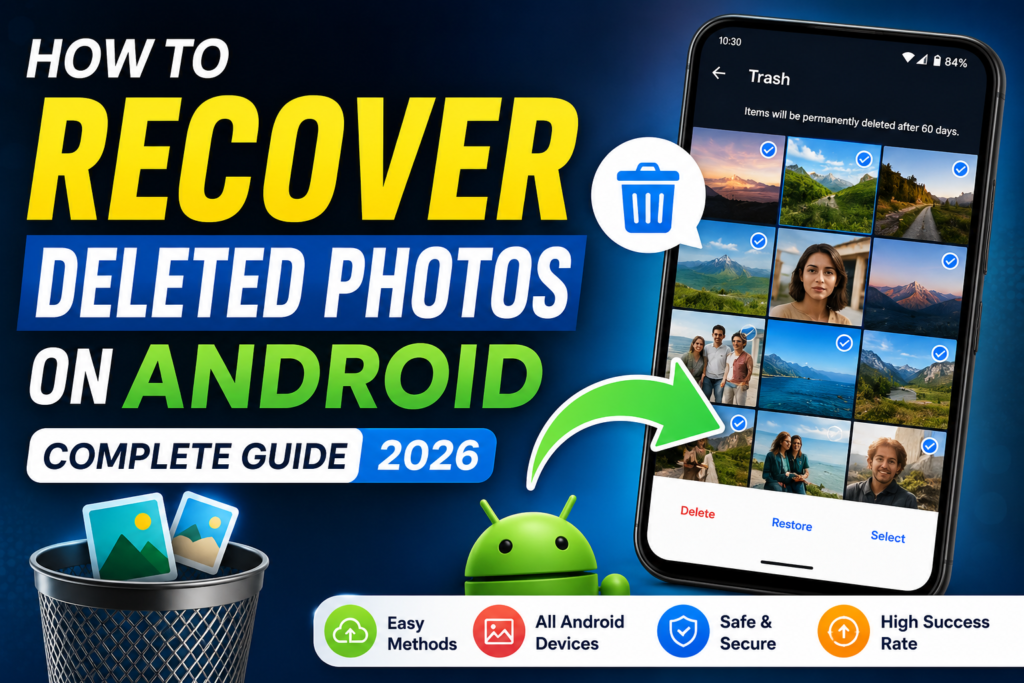
How to Recover Deleted Photos on Android Using Google Photos?
Recovering deleted photos on Android is easier than many users think. By using Google Photos, Gallery Trash, cloud backups, and recovery tools, you can successfully recover deleted photos on Android and protect your important memories.
Can Deleted Photos Be Recovered?
Yes, in many cases.
When a photo is deleted, it is usually moved to a trash or recycle bin folder before being permanently removed. Even after permanent deletion, recovery may still be possible using backups or recovery tools.
The success rate depends on:
- How recently the photo was deleted
- Whether the storage has been overwritten
- Whether backups are available
Why Photos Get Deleted on Android?
Photos can disappear from Android devices for several reasons. The most common cause is accidental deletion. However, photos may also be lost due to factory resets, software update failures, storage corruption, malware attacks, or damaged SD cards. Understanding the reason behind photo loss can help users choose the most effective recovery method.
How to Recover Deleted Photos on Samsung Phones?
Samsung devices include a Recycle Bin feature in the Gallery app. Deleted photos are usually stored temporarily before being permanently removed.
Steps:
1. Open Samsung Gallery.
2. Tap Menu.
3. Select Recycle Bin.
4. Choose the deleted photos.
5. Tap Restore.
Photos will be returned to the Gallery automatically.
How to Recover Deleted Photos on Xiaomi Phones?
Xiaomi smartphones provide a Recently Deleted folder within the Gallery application. Users can restore deleted images within the retention period.
Steps:
1. Open Gallery.
2. Tap Albums.
3. Open Recently Deleted.
4. Select photos.
5. Tap Restore.
How to Recover Deleted Photos from an SD Card
If your photos were stored on an SD card, recovery may still be possible. Remove the SD card from your phone and connect it to a computer using a card reader. Specialized recovery software can scan the storage and recover deleted images if they have not been overwritten.
- To improve recovery success:
- Stop using the SD card immediately.
- Avoid copying new files.
- Use trusted recovery software.
- Save recovered files to a different location.
Method 1: Check Google Photos Trash
Before using recovery apps, check the Google Photos Trash folder. According to the official Google Photos Help Center, deleted photos may remain available for a limited period before permanent removal.
Steps:
- Open Google Photos.
- Tap Library.
- Select Trash or Bin.
- Locate the deleted photo.
- Tap Restore.
The photo will return to your gallery and Google Photos library.
Method 2: Recover Photos from Device Gallery Trash
Many Android brands include a built-in recycle bin feature.
Supported brands include:
- Samsung
- Xiaomi
- Realme
- Oppo
- Vivo
Steps:
- Open Gallery.
- Go to Recently Deleted.
- Select the photo.
- Tap Restore.
Method 3: Restore Photos from Google Drive Backup
If backups are enabled, you can restore photos through Google Drive. Refer to the Google Drive Backup Support documentation for backup and recovery options.
Steps:
- Open Google Drive.
- Check your backup folders.
- Download the required images.
Always enable automatic backups to avoid future data loss.
Method 4: Recover Photos Using Cloud Services
Many users store images in cloud platforms such as:
- Google Photos
- OneDrive
- Dropbox
Check your cloud storage account before trying advanced recovery methods.
Method 5: Use Photo Recovery Applications
Several recovery applications can scan storage for deleted files.
Popular options include:
- DiskDigger
- Dumpster
- EaseUS MobiSaver
Before installing any recovery tool:
- Read reviews carefully.
- Download only from trusted sources.
- Avoid apps requesting unnecessary permissions.
Tips to Increase Recovery Success
Stop Using the Phone Immediately
When new files are saved, deleted data may be overwritten.
Enable Automatic Backups
Use:
- Google Photos Backup
- Google Drive Backup
- OneDrive Backup
Organize Photos Regularly
Create albums and backups to reduce accidental deletions.
Common Reasons Photos Get Deleted
- Accidental deletion
- Factory reset
- Software update issues
- Storage corruption
- Malware attacks
- SD card failure
Conclusion
Recovering deleted photos on Android is often easier than most users think. Start by checking Google Photos Trash, Gallery Recycle Bin, and cloud backups before using recovery applications. Regular backups remain the best way to protect important memories and files.
By following the methods in this guide, you can significantly improve your chances to recover deleted photos on Android and prevent future data loss. Whether your photos were accidentally deleted or lost due to software issues, these recovery methods can help restore your valuable images quickly and safely.
Share:
FAQ (Frequently Asked Questions) ?
1. Can permanently deleted photos be recovered?
Sometimes. Recovery is possible if the storage area has not been overwritten.
2. Is rooting required for photo recovery?
No. Basic recovery methods usually do not require root access.
3. How long do deleted photos stay in Google Photos Trash?
Up to 60 days.
4. Can I recover photos after a factory reset?
If backups exist, yes. Otherwise recovery becomes difficult.
5. What is the safest recovery method?
Restoring from Google Photos or cloud backups is the safest approach.
6. Can I recover deleted photos without backup?
Yes, it is possible to recover deleted photos without a backup in some cases. If the photos were recently deleted, you may find them in the Google Photos Trash or your phone’s Gallery Recycle Bin. If no backup is available, photo recovery apps may help recover deleted images, provided the storage space has not been overwritten by new data.
7. Can I recover photos from an SD card?
Yes. If your photos were stored on an SD card, recovery may still be possible. Remove the SD card from your Android device and connect it to a computer using a card reader. Recovery software can scan the card and restore deleted photos if the data has not been permanently overwritten.
8. Are recovery apps safe?
Most recovery apps are safe when downloaded from trusted sources such as the Google Play Store. However, users should carefully review app ratings, permissions, and developer information before installation. Avoid apps that request unnecessary permissions or come from unknown developers.
9. What happens after 60 days in Google Photos Trash?
Google Photos typically keeps deleted photos in the Trash folder for up to 60 days. After this period, the photos may be permanently deleted from Google’s servers and may no longer be recoverable through Google Photos. To avoid permanent loss, restore important photos before the retention period expires.